Inventory tracking on your phone
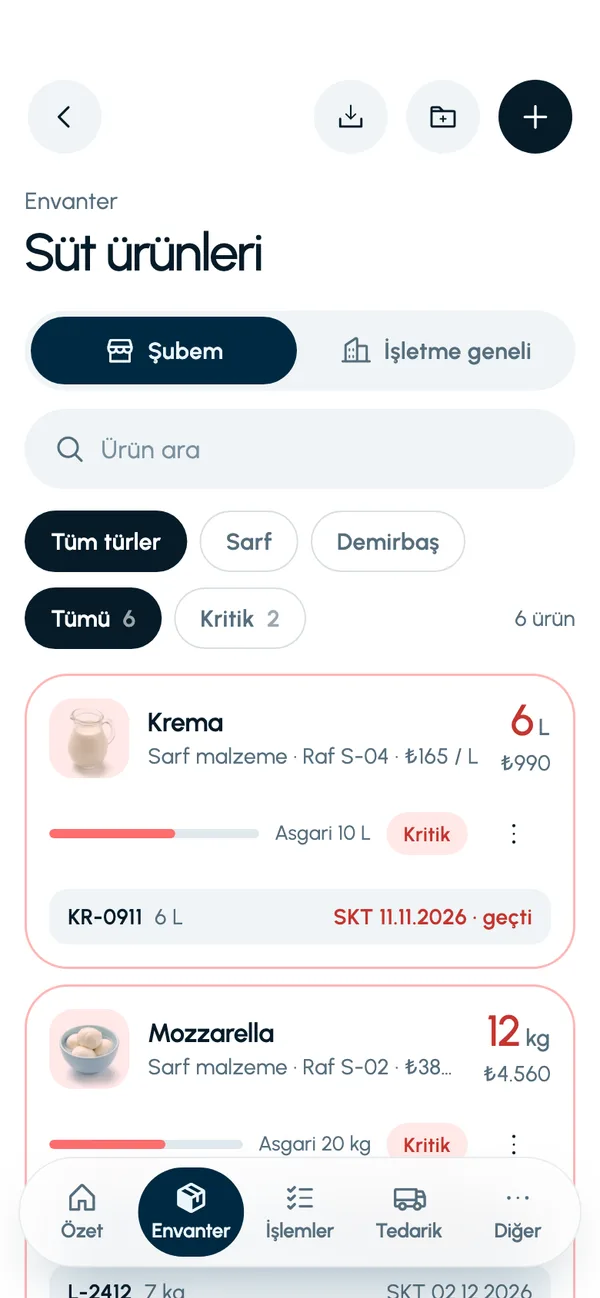
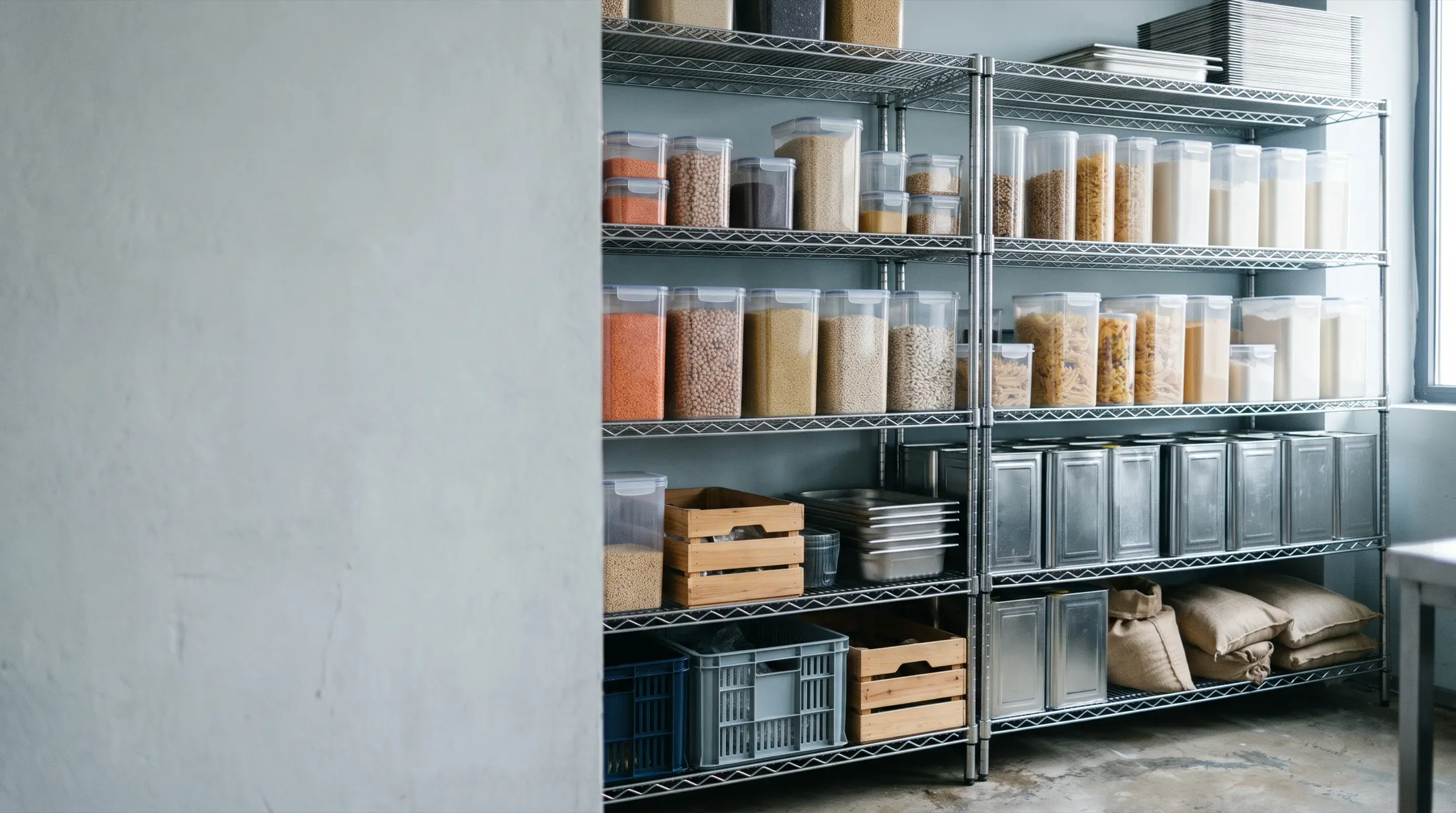
In LineerStok, inventory tracking shows the quantity, unit cost, minimum level and shelf code of every item in a branch on one screen. You record stock in and stock out from your phone. The app does not let you take out more than you have, and it flags any item that falls below its minimum level as critical.
What you can do
Product card
Each product has a category, a type (consumable or fixed asset), a unit, a minimum level, a unit cost and a shelf code. The SKU, barcode and serial number are on the same card.
Stock in and out from your phone
Tap the product, enter the quantity and choose stock in or stock out. You can record a stock out as a manual stock out or as a customer sale, and add a note.
Excess stock out is blocked
If the branch has 12 kg, you cannot take out 13 kg. Stock never goes negative, so the records and the shelf stay in line.
Low-stock items
When the quantity drops below the minimum level, the item counts as critical. You can filter for these items in Inventory with one tap, and they appear at the top of the Summary screen (Özet).
Stock value
The Summary screen multiplies quantity by unit cost to show the total stock value and how that value is split across categories.
Product photo
When you create a product you can take a photo or pick one from your gallery. In the list, the item is recognizable by its image as well as its name.
Screens from the app
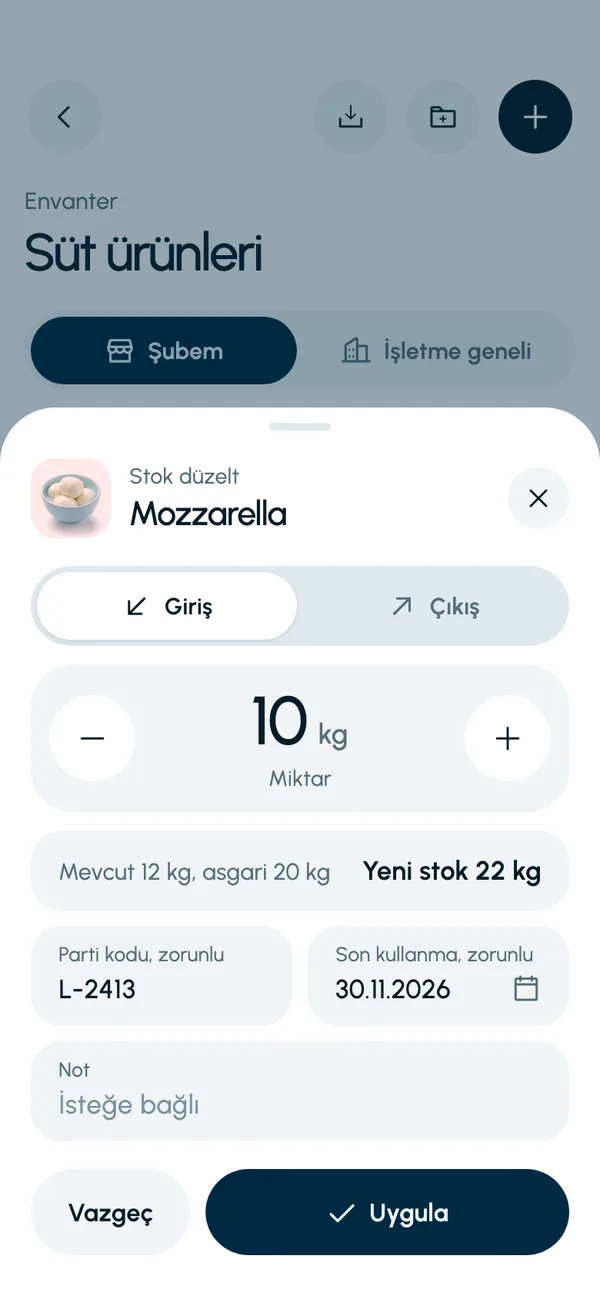
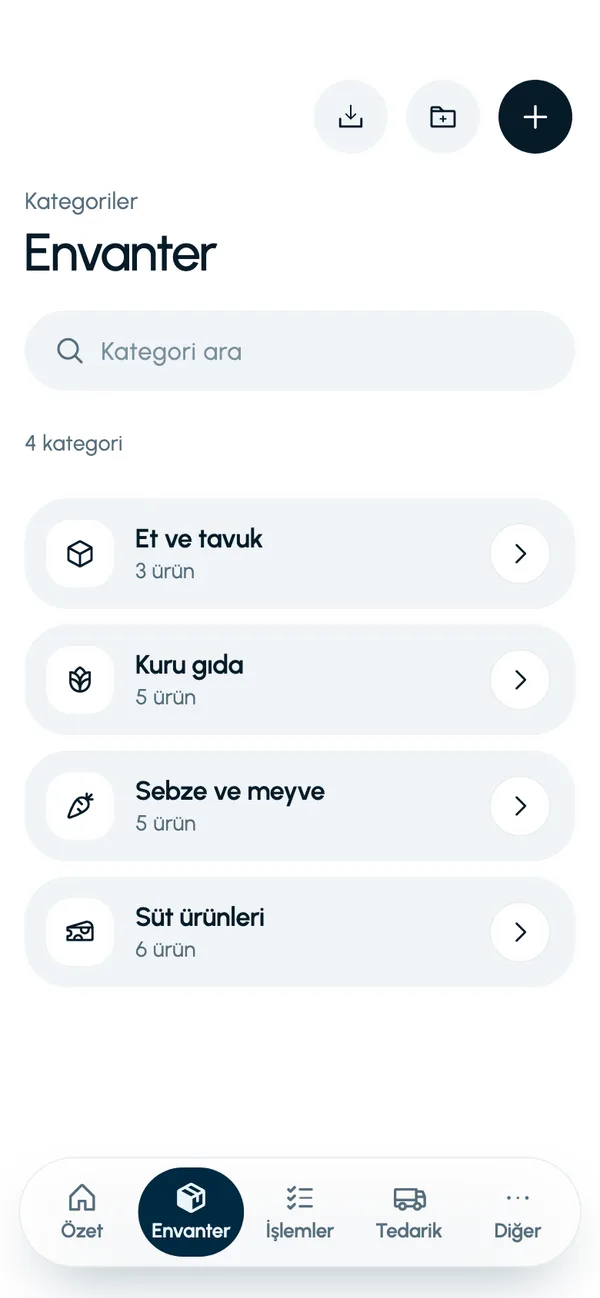
These are real screens from the app. The app interface is in Turkish; the business and products shown are sample data.
How it works
- 1
Create your categories
Set up your own categories, such as meat and poultry, dairy or dry goods.
- 2
Add your products
Enter the name, unit, minimum level and unit cost. If you like, let the app generate the SKU and scan the barcode with the camera.
- 3
Record stock in and out
Record incoming goods as stock in and what you use as stock out. Every transaction is written to stock movements.
- 4
Follow it on the Summary screen
Stock value, low-stock items and recent movements are in front of you when you open the app.

At a glance
- Product types
- Consumable, fixed asset
- Unit
- Free text: kg, L, pieces and so on
- Codes
- SKU, barcode, serial number
- Filters
- Category, type, critical, search by name
- Currency
- Turkish lira (₺)
Good to know
- A product that has stock or a movement history cannot be deleted. This keeps past records intact.
- Only the business admin can delete products.
- While a stock count is in progress at a branch, stock in and stock out are blocked. They reopen when the count is finished.
- A product photo is added when the product is created.
- Bulk product import from Excel is not available yet. Products are added in the app.
Frequently asked questions
Can stock go negative?
No. If the quantity you try to take out exceeds what the branch has, the transaction is not processed and the app shows the quantity on hand. This rule is enforced both on the phone and on the server.
How is low stock determined?
You enter a minimum level for each product. When the branch quantity falls below that level, the item is flagged as critical and joins the needs-attention list on the Summary screen.
Which units can I work with?
The unit is free text. You can enter kilograms, liters, pieces, cases or any other unit your business uses.
Can I import my existing product list from Excel?
Import is not available yet; products are added one by one in the app. You can export your inventory as an Excel or CSV file.


Let us set up your stock together
We will walk you through the app with your own products and branches. The demo is free and takes about 30 minutes.